
A simple guide to every Panto option
How to buy PantoGlasses
Clear glasses, screen glasses, sunglasses, reading glasses, plano fashion lenses or frames only: choose what you need and we’ll show you exactly what to select.
The first step is to choose a Panto frame.
Then choose Prescription or Non-Prescription under “Select your Lens”. The options below will guide you.
Start here
What do you need?
Select one option to see its ordering steps. You can change your mind at any time. The actual selection and final price are on the Panto product page.
Prescription
Everyday distance or multifocal vision
See clearly, every day
Clear prescription glasses
Clear lenses are already selected. Add your prescription and choose your vision type.
Prescription
Three blue-cut option
For your screen time
Prescription screen glasses
Choose Blue Cut material, Blue-Cut coating on Clear, or Blue-Cut Photochromic.
Single Vision for near work
Prescription
For the next chapter
Reading glasses
Choose Single Vision and enter the near prescription for reading.
Reduce reflected glare
Plano
For bright days out
Polarized sunglasses
Choose Polarized material, then Grey, Brown, Green or lighter Grey.
Clear indoors, darker outdoors
Plano
From indoors to sun
Photochromic glasses
Choose Classic, Transitions Gen S, or Blue-Cut Photochromic.
Optional effects on Clear material
Plano
For your own style
Tinted, gradient or mirror
Choose Clear material first, then add your tint, gradient or mirror finish.
Fashion and sun lenses without a prescription
Plano
For the look you love
Non-prescription / plano
Select Non-Prescription, then choose clear, screen or sun lenses.
Have lenses fitted locally
Frame
Your frame, your way
Frames Only
Order the Panto frame and ask your local optician to fit lenses.
Lens colours shown below illustrate the effect on an Oxford frame; choose your exact colour and options on the product page.
Your ordering route
Clear prescription glasses
For clear everyday vision, the included setup is already selected. You only need to change it if you want a different lens type, material, index or coating.
Choose your frame
Pick your Panto model, colour and size.
Choose Prescription
Under Glasses Type, select Prescription and enter or upload your prescription.
Choose your lens type
Single Vision is the included choice. Select Progressive for distance, intermediate and near vision in one pair, or Bifocal for distance and near with a visible segment.
Keep the included clear setup
Clear lens material, Standard 1.50 index and HMC coating are already selected on a suitable full-rim product. No optional tint is needed for clear glasses.
Review and add to cart
Check the prescription, frame, any upgrades and final price.
What is included? Standard Single Vision, Clear 1.50 lenses with HMC coating are included in the basic frame price for a suitable full-rim model. Progressive, Bifocal and other upgrades add to the price.
Need help reading your prescription? See the prescription guide. Need your PD? See the PD guide.
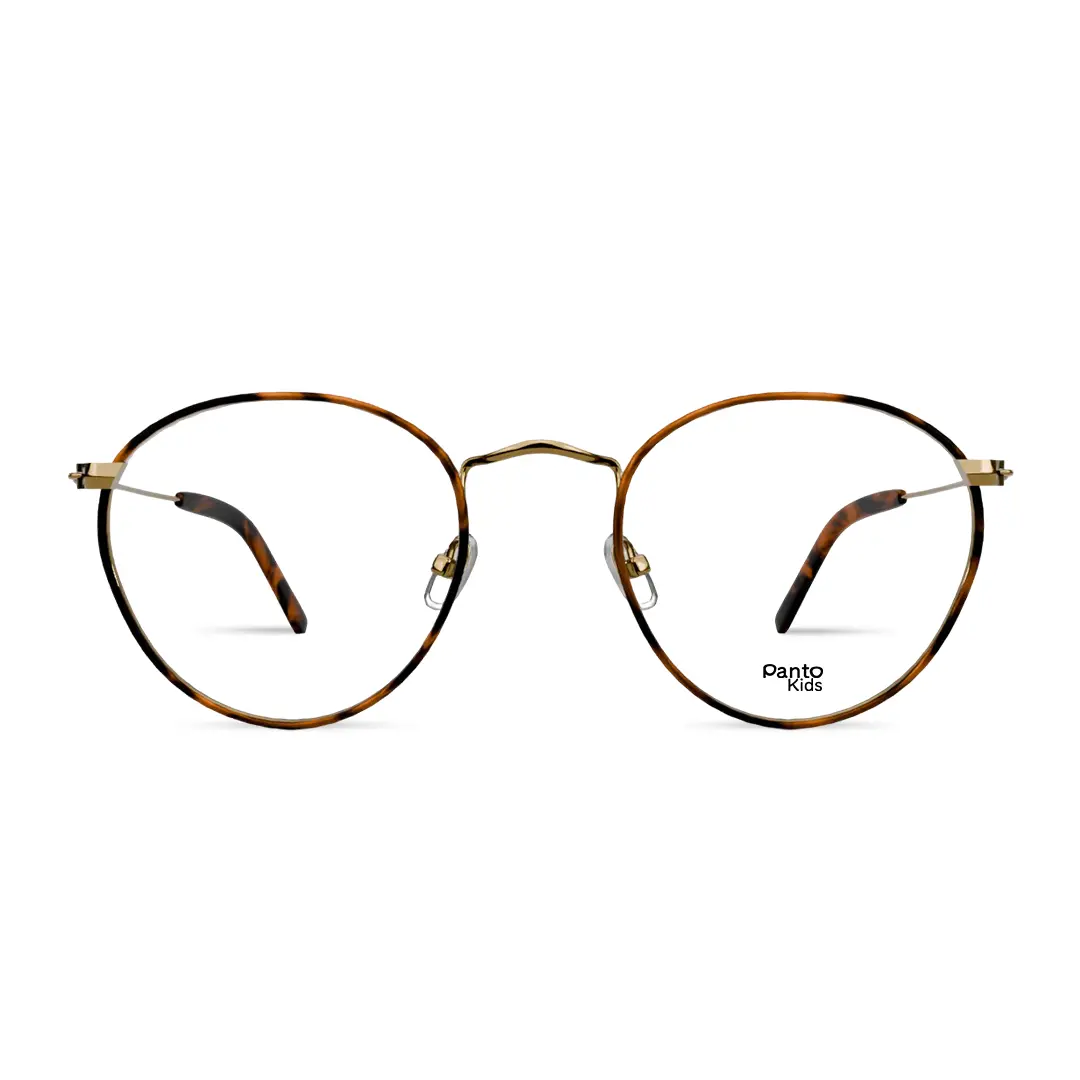
Start with your frame
The Oxford shape is based on the actual Panto frame. The lens effect shown is illustrative; select your exact colour on the product page.
Your ordering route
Comfortable vision for your digital world
Whether you work at a computer, use several screens or spend time reading on digital devices, the right glasses can make a difference.
Screen and computer glasses are suitable for people of different ages. Some simply use their everyday prescription glasses, while others benefit from lenses specifically prescribed for their working distance.
Choose clear lenses or optional blue-light filtering lenses, according to your needs and preferences.
Choose your Panto frame and prescription
Select your favourite Panto frame and enter or upload your eyeglass prescription.
If you need a prescription specifically for computer or intermediate distances, make sure the prescription is appropriate for that purpose.
Choose the lens type for your viewing distance
Single Vision: One prescription for a particular viewing distance, such as your computer screen. Suitable for customers of different ages.
Progressive: Combines distance, intermediate and near vision in one pair. Often useful when you need to see clearly at several distances.
Occupational / Computer Progressive: Designed for near and intermediate tasks, such as reading, working at a computer and viewing other objects around your workspace. These lenses can provide a more generous working area for these distances than general-purpose progressives, depending on the lens design. They are not intended for driving.
Bifocal: Combines two viewing zones, typically distance and near, with a visible dividing line.
Choose clear or blue-light filtering lenses
Clear lenses – the classic choice
Clear prescription lenses with our standard HMC coating provide clear vision and anti-reflective performance. They are an excellent option for everyday wear and computer use.
BlueCut UV++ – optional blue-light filtering
Select Blue Cut UV++ under Lens Material if you prefer lenses with blue-light filtering properties.
BLSC – blue-light filtering coating
Select Clear under Lens Material, followed by BLSC under Coating.
Bluecut Photochromic – indoor and outdoor versatility
Select Photochromic Lenses under Lens Material, then Bluecut Photochromic under Photochromic Type.
These are alternative ways to select blue-light filtering features, not three options that must be combined. Availability and compatibility depend on the selected lens.
A note about blue-light filtering
Some customers prefer blue-light filtering lenses and report that they find them comfortable for screen use. However, scientific studies have not established that these lenses consistently reduce digital eye strain compared with ordinary clear lenses.
We therefore offer both options and leave the choice to you.
Finish the setup
Choose the appropriate lens index and any compatible coating options.
Our standard single-vision HMC lenses are included where indicated on the product page. Optional lens types, materials and coatings may have an additional charge.
Review your choices and the final price before ordering.
Do younger people benefit from special computer glasses?
Yes, in some circumstances.
Computer glasses are not exclusively for people over 40 or those who need reading glasses.
Younger customers may benefit from correctly prescribed lenses for their particular working distance, while others see comfortably with their normal distance prescription or without glasses.
For some people, an eye care professional may recommend a small additional plus power, such as +0.50 or +0.75 dioptres, for sustained near or intermediate tasks. The appropriate prescription depends on the person’s vision, focusing ability and working distance. Note that these glasses can not be used for viewing far distance, as details there will be blurry.
Do not add extra plus power to your prescription without professional guidance.
Bluecut Photochromic: designed for use indoors with a clearer lens and darkens outdoors in sunlight. It combines the blue-cut and photochromic features. These three routes are alternatives—choose one, not all three.
Need help reading your prescription? See the prescription guide. Need your PD? See the PD guide.

Start with your frame
The Oxford shape is based on the actual Panto frame. The lens effect shown is illustrative; select your exact colour on the product page.
Your ordering route
Polarized prescription sunglasses
Polarized lenses reduce reflected glare. Choose the actual lens colour after selecting Polarized as the material.
Choose a Panto frame and Prescription
Enter or upload your prescription.
Choose Single Vision, Progressive or Bifocal
Choose the vision areas you need, just as you would for clear prescription glasses.
Select Polarized
Under Lens Material, select Polarized.
Choose the Polarized colour
Select Brown, Grey or Green. The product also offers a lighter Grey Pola Bright 50% choice; the other displayed polarized colours are darker.
Complete the setup
Choose index and coating, confirm the actual colour and final price, then add to cart.
Looking for a fixed fashion tint instead? Choose Clear lens material and use the optional Tinting section. Polarized has its own colour choices.
Need help reading your prescription? See the prescription guide. Need your PD? See the PD guide.

Start with your frame
The Oxford shape is based on the actual Panto frame. The lens effect shown is illustrative; select your exact colour on the product page.
Your ordering route
Photochromic glasses
Photochromic lenses change with sunlight. They are a useful route when you want one pair for indoor and outdoor wear.
Choose a frame and Glasses Type
Select Prescription and add your values, or Non-Prescription for plano lenses without correction.
Choose lens type if you have a prescription
Single Vision, Progressive or Bifocal according to your viewing needs.
Select Photochromic Lenses
Under Lens Material, choose Photochromic Lenses; then choose a Photochromic Type.
Choose the type and colour
Classic Photochromic: Brown or Grey. Transitions Gen S: Brown, Grey, Green, Amber, Amethyst, Emerald, Ruby or Sapphire. Bluecut Photochromic: Grey.
Review index, coating and price
Confirm your chosen type and colour before adding to cart.
For screen use too? Select Bluecut Photochromic: clearer indoors for screen use and darker outdoors in sunlight. On the live product page this type is shown with Grey.
Need help reading your prescription? See the prescription guide. Need your PD? See the PD guide.

Start with your frame
The Oxford shape is based on the actual Panto frame. The lens effect shown is illustrative; select your exact colour on the product page.
Your ordering route
Tinted, gradient, dual tone or mirror
These are optional finishes selected after choosing Clear as the lens material. They can be used for prescription or non-prescription glasses.
Choose your frame and Glasses Type
Select Prescription and add your prescription, or Non-Prescription for plano fashion or sun lenses.
Choose your lens type if needed
For a prescription, choose Single Vision, Progressive or Bifocal.
Select Clear lens material
Keep Clear selected in Lens Material. This is the starting point for these finishes.
Open Tinting (Optional)
Choose Full Tinted, Gradient, Dual-Tone or Mirror. Then choose a colour and the tint percentage or gradient strength shown for that option.
Finish index and coating
Review the exact effect, chosen options and price before adding to cart.
What changes? Full Tint colours the lens evenly; Gradient is darker at the top; Dual-Tone uses two colours; Mirror adds a reflective finish. For a gentle café look, try a 20–0% gradient: light at the top, clear at the bottom. Choose its actual colour and percentage in the product’s Tinting section.
Need help reading your prescription? See the prescription guide. Need your PD? See the PD guide.

Start with your frame
The Oxford shape is based on the actual Panto frame. The lens effect shown is illustrative; select your exact colour on the product page.
Your ordering route
Non-prescription / plano glasses
Plano means lenses without vision-correcting power. Choose this for fashion glasses, screen lenses without a prescription or non-prescription sunglasses.
Choose a Panto frame
Pick the model, colour and size you want.
Select Non-Prescription
Under Glasses Type, choose Non-Prescription rather than Prescription or Frame Only.
Choose what your plano lenses should do
For a clear fashion look, keep Clear. For screen use, choose Blue Cut UV++ material, or Clear plus BLSC coating, or Bluecut Photochromic. For sun wear, choose Polarized or Photochromic, or keep Clear and add a tint, gradient, dual tone or mirror finish.
Complete the options
Choose your colour, index and coating as shown for that route, then check the final price.
Fashion only = plano: lenses with no prescription power. “Frame Only” is different—it is the frame without fitted optical lenses for your local optician.
Need help reading your prescription? See the prescription guide. Need your PD? See the PD guide.

Start with your frame
The Oxford shape is based on the actual Panto frame. The lens effect shown is illustrative; select your exact colour on the product page.
Your ordering route
Reading glasses
For a dedicated pair for books and other close work, choose Single Vision and use your near prescription for each eye.
Choose a Panto frame and Prescription
Select Prescription under Glasses Type.
Choose Single Vision
This creates a separate pair for one near viewing distance, rather than a Progressive pair for multiple distances.
Find your near prescription
If your prescription shows a near value, follow it. If you have distance SPH and an ADD, use the Panto Near Vision Calculator to calculate near SPH for each eye; keep the CYL and AXIS values as shown.
Enter near values in the order form
Enter the calculated or prescribed near SPH in each eye’s SPH field for the Single Vision reading pair. Do not enter the ADD number itself as SPH. Choose Clear and keep the included HMC unless you want upgrades.
Check the working distance and values
Review your near power and the final price before ordering.
Example: a distance SPH of −2.00 with ADD +2.00 gives near SPH 0.00 for that eye. Your two eyes may differ. Use the ADD & Near Vision Calculator ↗. Its result is an estimate; check it against your optician’s prescription before ordering.
Need help reading your prescription? See the prescription guide. Need your PD? See the PD guide.

Start with your frame
The Oxford shape is based on the actual Panto frame. The lens effect shown is illustrative; select your exact colour on the product page.
Your ordering route
Frames Only
Choose this when you want the Panto frame and will have your local optician fit the lenses.
Browse Frames Only
Choose a model, colour and size.
Select Frame Only
Use the Frames Only shopping route. The prescription lens setup is hidden there.
Take the frame to your optician
Your optician can measure you and fit the lenses you need.
Want complete glasses from Panto instead? Return to the prescription collection and choose Prescription or Non-Prescription under “Select your Lens”.
Need help reading your prescription? See the prescription guide. Need your PD? See the PD guide.
Start with your frame
The Oxford shape is based on the actual Panto frame. The lens effect shown is illustrative; select your exact colour on the product page.
Useful for every complete pair
Lens type, index and coating
After choosing your main lens setup, these are the remaining decisions you will see. Keep the included options unless you want a particular upgrade.
Prescription lens type
Where do you need to see?
- Single Vision has one prescription for distance, reading or computer distance.
- Progressive combines distance, intermediate and near vision without a visible line.
- Bifocal combines distance and near areas with a visible segment.
The basic frame price includes standard Single Vision lenses. Progressive and Bifocal add to the price. Use your prescription and how you plan to wear the glasses to decide; our lens guide explains the terms.
Lens index
Standard or thinner lenses?
- 1.50 Standard is the included option for suitable full-rim glasses.
- 1.59 Polycarbonate is lightweight and impact resistant.
- 1.60 Thin, 1.67 Extra Thin and 1.74 Ultra Thin are thinner-lens upgrades for stronger prescriptions.
Note:
Rimless: select the 1.60 rimless option shown on that product; 1.50 is not used for rimless. A stronger prescription does not automatically mean the highest index is needed—compare the options for your frame and prescription.
Coating
HMC is already included and free
HMC provides anti-reflective and scratch-resistant coating and is included in the basic setup. Leave it selected if it meets your needs.
You can instead choose SHMC for an easier-to-clean finish, FogOff/HMC for anti-fog, UV400/HMC for UV protection, or BLSC as the blue-cut coating on a Clear lens. Coating upgrades appear with their price on the product page.
Your prescription
Have these details ready
For each eye, use the values shown on your eyeglass prescription: SPH, CYL, AXIS and ADD when present. You can enter or upload your prescription using the product’s options.
Enter your measured PD. For progressive or bifocal lenses, follow the product instructions for pupil or segment height. If you do not know a value, use the help link or ask our team before submitting it.
Choose the look and light level
Colours and tint percentages
Pick the lens material first. The next colour and percentage controls belong to the effect you chose. These examples show how to think about darkness; the product page gives you the exact selection.
Full Tint
Select Clear material → Full Tinted → a colour such as Grey, Brown, Olive Green, Blue, Pink, Amber, Amethyst or Yellow Calichrome → its tint percentage. A larger tint percentage means a darker appearance in the Panto options.

Gradient
Select Clear → Gradient → colour → gradient percentage. The top is darker than the bottom. 20–0% is a subtle café-style example: a light top fading to clear below.
Mirror and Dual-Tone
Select Clear → Mirror for a reflective finish, or Dual-Tone for a two-colour effect. Then choose the colour combination and percentage shown for that finish.

Polarized and Photochromic
These have their own colour selectors under Lens Material. Polarized offers Brown, Grey, Green and lighter Grey Pola Bright 50%. Classic Photochromic offers Brown/Grey; Transitions Gen S offers eight colours; Bluecut Photochromic offers Grey.
Percentage has different meanings: a tint percentage describes the chosen tint effect; lens light transmission measures how much visible light passes through. Do not treat a tint percentage as a certified driving or UV-protection rating.
A few ways to put the choices together
Panto combinations to try
Use these as starting points. Any of them can be prescription or plano where the same lens choice is offered.
Café look
Clear material → Gradient → Brown or Grey → 20–0%. A gentle tint at the top fading to clear below.
Subtle colour
Bright daytime outdoors
Polarized material → Grey or Brown. Choose the lighter Grey Pola Bright option if you prefer a less dark lens.
Reflected-glare control
Statement sunglasses
Clear material → Mirror → select Blue, Green, Gold or Silver and the strength shown on the product.
Reflective finish
Everyday screens
Single Vision at your computer distance → Blue Cut material, or Clear material with BLSC coating.
Choose one blue-cut route
Indoors to outdoors
Photochromic material → Classic Grey/Brown, Transitions Gen S colour, or Bluecut Photochromic Grey.
Changes in sunlight
Dedicated reading
Prescription → Single Vision → your verified near prescription → Clear material → included HMC.
One near viewing range
Different uses
Which lenses suit your day?
Daytime driving
A Grey or Brown polarized lens can reduce reflected glare. If choosing a fixed tint, around 60% tint can be a starting point for bright daytime use, provided the finished lens is certified suitable for road use and lets you see signals clearly. Check its actual light transmission with Panto before ordering for driving.
Do not use dark tints at night or in poor visibility. For night driving, use the correct clear prescription; an anti-reflective coating may help with reflections.
Work, cafés and indoors
For a subtle fashion colour indoors, use a light full tint or a 20–0% gradient on Clear lens material. If the glasses are for reading or computer work, choose the correct Single Vision working distance first.
Outdoor sun and water
Choose Polarized for strong reflected glare, or a fuller tint for a fixed colour and darkness. Photochromic is an option when you move between indoor and outdoor light. Choose the lens type for your vision needs first.
Fashion only / plano
Choose Non-Prescription if you want fitted lenses without vision correction. You can make clear fashion glasses, a gentle café tint, polarized sunglasses, photochromic lenses or mirror sunglasses through the same setup.
Driving suitability depends on the finished lens and local rules, not a tint percentage alone.
Before placing the order
Need help with your measurements?
First time buying Panto?
Compare the frame measurements with a pair you already wear, then check your prescription values. Read the prescription and lens guide ↗
PD is your own measurement
PD measures the distance between your pupils. It is not automatically measured by Virtual Try-On. Use the value from your optician or follow the PD measurement guide ↗.
Progressive pupil height (PH)
PH is the vertical distance from your pupil to the lower edge of the lens. The product page asks for right and left PH for Progressive lenses. You can leave it empty if you do not know it; Panto uses its calculated average unless you provide a measurement. See the lens guide ↗
Reading power and ADD
Choose Single Vision for dedicated reading glasses. Use your prescribed near values, or calculate an estimated near prescription from your distance values and ADD. Enter the resulting near SPH as SPH for each eye; do not enter the ADD itself as SPH. Open the ADD & Near Vision Calculator ↗
Ready to choose your Panto?
Pick your frame first. On its product page, “Select your Lens” contains the same choices described above. You will see any additions and the final price before adding the glasses to your cart.
